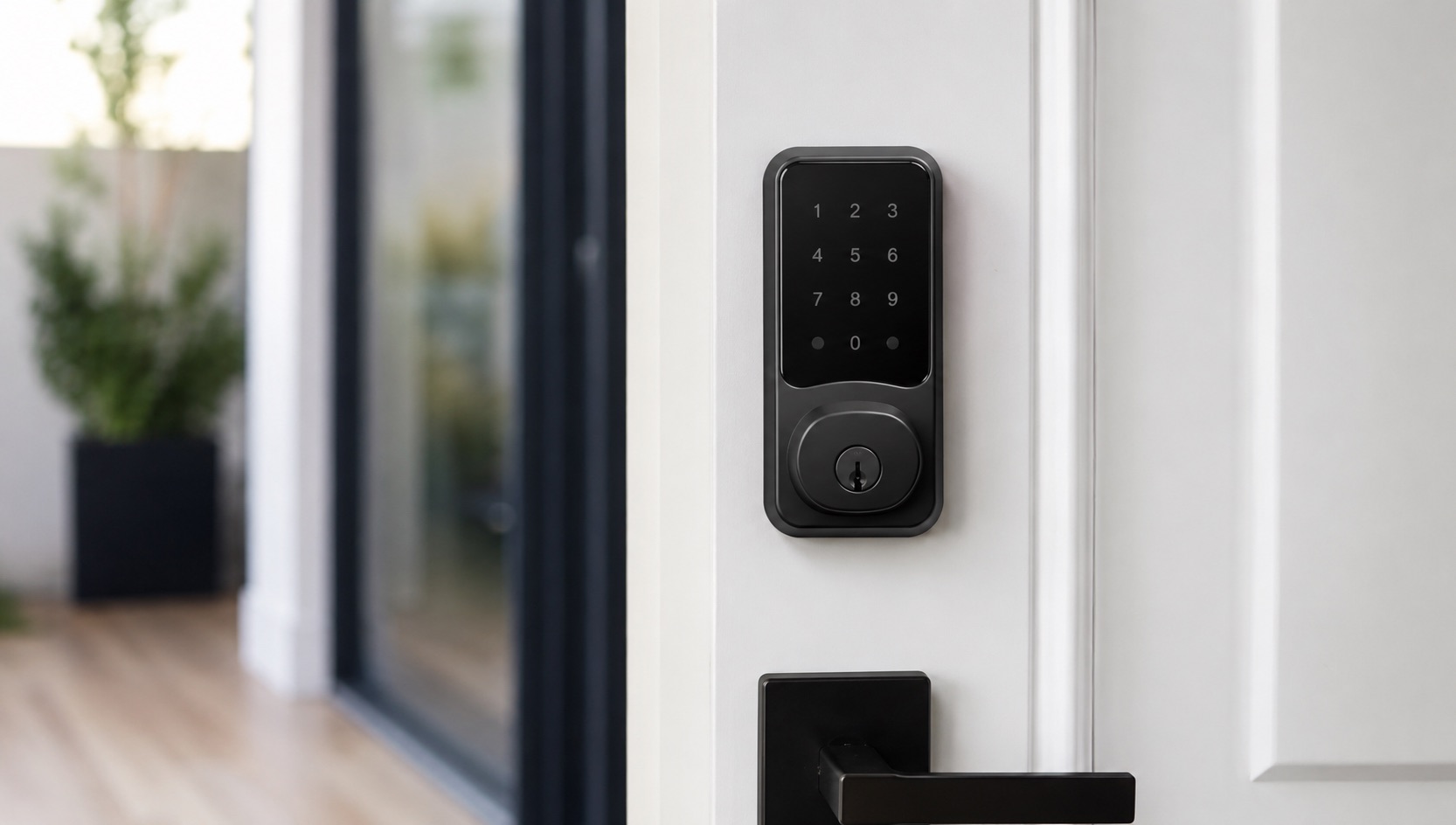
Aqara Smart Lock + Home Assistant Setup Guide (2026)
Aqara smart locks are some of the best you can buy in 2026. They support multiple unlocking methods, have solid build quality, and work with both the Aqara app and Home Assistant. I have been running an Aqara U200 with Home Assistant for six months now, and the local control experience is exactly what I wanted. No cloud dependency, instant response, and automations that actually work reliably.
This guide walks you through pairing Aqara locks with Home Assistant, choosing between Zigbee and Matter paths, and building the automations that make a smart lock genuinely useful instead of just a fancy deadbolt.
Which Aqara Locks Work With Home Assistant?
Aqara sells several lock models, and they differ in how they connect to Home Assistant. Pick the wrong one and you might end up stuck with cloud-only control.
| Lock Model | Protocol | Home Assistant Support | Notes |
|---|---|---|---|
| Aqara U200 | Matter over Thread | Excellent | Recommended for HA users |
| Aqara U300 | Matter over Thread | Excellent | Premium build, higher price |
| Aqara A100 Pro | Zigbee (via Aqara Hub) | Good (requires Aqara Hub M3) | More affordable, needs hub |
| Aqara D100 | Zigbee (via Aqara Hub) | Good (requires Aqara Hub M3) | Deadbolt form factor |
| Aqara U100 | Zigbee (via Aqara Hub) | Limited | Older model, cloud-dependent features |
The U200 and U300 are the best choices for Home Assistant users because they support Matter over Thread. This means they connect directly to Home Assistant without needing the Aqara Hub or any cloud services. The A100 Pro and D100 work too, but they need an Aqara Hub M3 acting as a bridge, which adds cost and complexity.
If you are already running Zigbee2MQTT, the U200’s Thread support is the way to go. It avoids potential Zigbee compatibility headaches entirely.
Path 1: Matter over Thread (U200/U300) - Recommended
This is the cleanest path. The U200 and U300 connect to Home Assistant via Matter over Thread, giving you fully local control with no cloud dependency.
What You Need
- Aqara U200 or U300 lock
- Home Assistant with a Thread border router (Home Assistant SkyConnect, Yellow, or an Apple TV/HomePod if using the Thread integration)
- A Thread-capable Home Assistant setup (2023.1 or later with the Thread integration enabled)
Step 1: Prepare the Lock
- Install the lock physically on your door following Aqara’s manual
- Set up the lock in the Aqara app first (this is required for initial calibration)
- Create an Aqara account and add the lock
- Complete the calibration process (the lock needs to learn your door’s lock/unlock travel distance)
- Set up at least one fingerprint or PIN code in the Aqara app
You cannot skip the Aqara app setup. The lock requires calibration before it can function, and this only works through the app. After calibration, you can control everything through Home Assistant and rarely open the Aqara app again.
Step 2: Enable Matter Pairing
- Open the Aqara app
- Go to your lock’s settings
- Find “Matter” or “Third-party platform” settings
- Enable Matter pairing mode
- The app will show a Matter pairing code (usually a QR code and a numeric code)
Step 3: Add to Home Assistant
- In Home Assistant, go to Settings > Devices & Services
- Click Add Integration and search for “Matter”
- Select “Add Matter device”
- Scan the QR code from the Aqara app, or enter the numeric code manually
- Home Assistant will discover the lock and add it as a device
The lock appears as a lock entity in Home Assistant with lock/unlock controls and state reporting.
Step 4: Verify Local Control
Go to Settings > Devices & Services > Matter and confirm your lock shows as “connected” without any cloud or internet dependency. Test locking and unlocking from the Home Assistant dashboard. Response should be under 500ms.
Path 2: Zigbee via Aqara Hub M3 (A100 Pro/D100)
If you already own an Aqara Hub M3 or prefer Zigbee locks, this path works. The hub acts as a bridge between the lock’s Zigbee radio and Home Assistant.
What You Need
- Aqara A100 Pro or D100 lock
- Aqara Hub M3 (required, older hubs do not support lock bridging to HA)
- Home Assistant with the HomeKit Device integration or Aqara integration
Step 1: Set Up the Aqara Hub M3
- Plug in and set up the Hub M3 in the Aqara app
- Add the lock to the hub via the Aqara app
- Complete lock calibration
- Make sure the hub firmware is up to date
Step 2: Expose to Home Assistant
The Aqara Hub M3 supports the HomeKit protocol, which Home Assistant can use to control devices locally without the Aqara cloud.
- In Home Assistant, go to Settings > Devices & Services
- Click Add Integration and search for “HomeKit Device”
- Home Assistant will discover the Aqara Hub M3 automatically
- Enter the pairing code shown in the Aqara app
- The lock and any other Zigbee devices connected to the hub appear in Home Assistant
Limitations of the Zigbee Path
- Requires the Aqara Hub M3 ($60-80 extra)
- Lock/unlock works, but some features like fingerprint management stay in the Aqara app
- You are dependent on the hub staying powered and connected
- Slightly higher latency compared to direct Thread connection
If you are building a new setup, the Matter over Thread path (U200/U300) is worth the premium. See our best smart locks 2026 roundup for a full comparison.
Essential Home Assistant Automations
Once your lock is in Home Assistant, you can build automations that make the lock genuinely useful. Here are the ones I use daily.
Auto-Lock After Door Closes
automation:
  - alias: "Auto-lock front door"
    trigger:
      - platform: state
        entity_id: binary_sensor.front_door_contact
        from: "on"
        to: "off"
        for: "00:00:30"
    action:
      - service: lock.lock
        target:
          entity_id: lock.front_door
This locks the door 30 seconds after it closes. You need a door/window sensor on the door for this to work.
Notify on Unusual Activity
automation:
  - alias: "Late night door unlock alert"
    trigger:
      - platform: state
        entity_id: lock.front_door
        to: "unlocked"
    condition:
      - condition: time
        after: "23:00:00"
        before: "06:00:00"
    action:
      - service: notify.mobile_app
        data:
          title: "Door Unlocked"
          message: "Front door unlocked at {{ now().strftime('%H:%M') }}"
Unlock on Arrival (Geofencing)
automation:
  - alias: "Unlock when arriving home"
    trigger:
      - platform: zone
        entity_id: person.your_name
        zone: zone.home
        event: enter
    condition:
      - condition: state
        entity_id: lock.front_door
        state: "locked"
    action:
      - service: lock.unlock
        target:
          entity_id: lock.front_door
Auto-Lock When Everyone Leaves
automation:
  - alias: "Lock house when everyone leaves"
    trigger:
      - platform: zone
        entity_id: person.your_name
        zone: zone.home
        event: leave
    condition:
      - condition: state
        entity_id: group.family
        state: "not_home"
    action:
      - service: lock.lock
        target:
          entity_id: lock.front_door
For more automation ideas, check our Home Assistant automations for beginners guide.
Aqara App vs Home Assistant: When to Use Which
| Task | Aqara App | Home Assistant |
|---|---|---|
| Lock/unlock remotely | Yes | Yes |
| Add fingerprints | Yes (required) | No |
| View access logs | Yes | Yes (if supported) |
| Temporary PIN codes | Yes | Limited |
| Automate with other devices | Limited | Excellent |
| Local control (no cloud) | No (requires internet) | Yes |
| Cross-brand automations | No | Yes |
Use the Aqara app for lock-specific management: adding users, fingerprints, and temporary codes. Use Home Assistant for everything else: automations, dashboards, cross-device integration.
Common Issues and Fixes
Lock not appearing in Home Assistant: Make sure Matter pairing mode is still active. It times out after a few minutes. Re-enable it in the Aqara app.
Slow response times: Check your Thread network health. Add more Thread router devices (Thread-capable smart plugs or bulbs) to strengthen the mesh. Our Thread border router explained guide covers mesh optimization.
Lock shows as “unavailable” intermittently: This usually means Thread connectivity issues. Move your Thread border router closer to the lock, or add a Thread router device between them.
Cannot unlock via Home Assistant: Some Aqara locks require a PIN code to unlock remotely. Check if your lock has “remote unlock verification” enabled in the Aqara app settings.
Zigbee lock not pairing: Make sure you are using the Aqara Hub M3. Older hubs (M1S, M2) do not support exposing locks to Home Assistant via HomeKit.
Security Considerations
Smart locks control physical access to your home. Take security seriously:
- Use strong PIN codes: 6+ digits, not easily guessable
- Enable auto-lock: Never leave your door unlocked accidentally
- Monitor access logs: Check who unlocked and when
- Keep firmware updated: Aqara releases security patches regularly
- Local over cloud: Home Assistant gives you local control, which is more secure than cloud-dependent setups
- Have a physical key backup: Always keep a mechanical key in case electronics fail
Cost Breakdown
| Component | Price | Required? |
|---|---|---|
| Aqara U200 Lock | $180-220 | Yes |
| Home Assistant setup | Varies | Yes |
| Thread border router (SkyConnect) | $30 | If you don’t have one |
| Door/window sensor (for auto-lock) | $15 | Recommended |
| Total (Thread path) | $225-265 |
Compared to cloud-dependent locks with $10-20/month subscription fees, the local Home Assistant path pays for itself within 1-2 years. Our smart home cost breakdown has more on total ownership costs.
FAQ
Do I need the Aqara app after initial setup?
You need it for the initial calibration and for managing fingerprints and temporary PIN codes. For daily lock/unlock and automations, Home Assistant handles everything. Some users keep the Aqara app installed for occasional user management but rarely open it.
Can Aqara locks work with both Aqara app and Home Assistant simultaneously?
Yes. The lock can be paired with both the Aqara app (for management) and Home Assistant (for automations and local control) at the same time. Changes made in one app are reflected in the other.
Is Matter over Thread better than Zigbee for smart locks?
For locks specifically, yes. Matter over Thread gives you direct local control without a hub, lower latency, and no dependency on Aqara’s servers. Zigbee works fine if you already have an Aqara Hub M3, but Thread is the cleaner path for new installations.
What happens if my Home Assistant server goes down?
Your lock continues to work normally. Fingerprints, PIN codes, and the physical key all work regardless of Home Assistant’s status. You just lose remote control and automations until the server recovers.
Can I use an Aqara lock with Google Home or Alexa?
Yes, through Matter. The U200 and U300 can be added to Google Home and Alexa via Matter, giving you voice control. However, these platforms offer less automation flexibility than Home Assistant. See our Google Home vs Alexa vs HomeKit comparison for details.