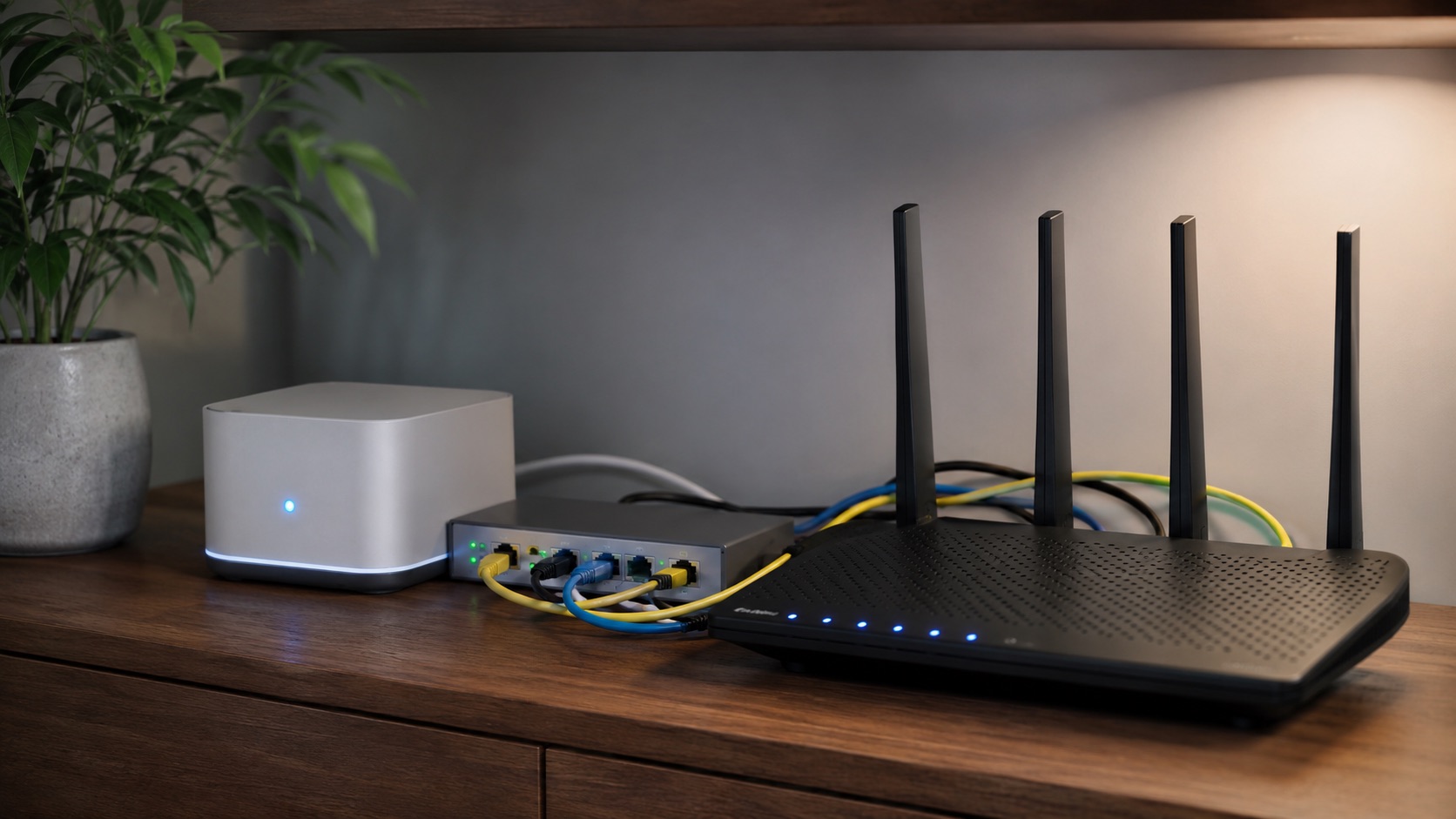
Illustrative image, not evidence of a product test.
Mesh WiFi for Working From Home: Worth Upgrading? (2026)
Your ISP’s all-in-one router box is probably killing your video calls and you don’t even realize it. That micro-stutter during screen share, the frozen face when your kid starts streaming, the “you’re cutting out” moment during your presentation. It’s not your internet speed. It’s your WiFi.
Here’s when mesh WiFi is worth the upgrade for WFH, and when you’re fine without it.
WFH-Specific WiFi Needs
Working from home puts different demands on your network than streaming Netflix. Entertainment tolerates buffering (it pre-loads). Work calls don’t. Here’s what matters:
Stability over speed. You don’t need 500 Mbps to your laptop. Zoom uses 3-5 Mbps. What you need is zero drops, zero micro-disconnects, and consistent latency. A single 200ms spike during a video call causes visible stuttering. Your ISP router might average great speeds but spike regularly under load.
Low latency for screen sharing. When you share your screen, every mouse movement and window change gets encoded and sent in real-time. High latency (over 50ms to your router) makes your shared screen appear laggy to colleagues. They see your cursor jump instead of glide.
QoS (Quality of Service) for work device priority. When your partner streams 4K, your kid plays online games, and your smart home devices all poll simultaneously, your work laptop needs priority. Good mesh systems let you prioritize specific devices so your Zoom call never competes with household traffic.
Wired backhaul capability. The best mesh setup for a home office: wire your office node directly to the main router via Ethernet. This gives your office node a dedicated, interference-free connection to the internet. Your laptop connects wirelessly to a node that’s 5 feet away (strong signal) which has a wired pipe to the router (zero wireless interference). Best of both worlds.
When You Need to Upgrade
Your calls drop or freeze during peak hours. If video quality degrades when family members use the internet (5-8pm typically), your router can’t handle simultaneous load. Mesh systems with dedicated backhaul bands handle this by design.
You’re more than one wall from your router. WiFi signal drops roughly 50% through each wall. Two walls and a floor between you and your router means you’re getting maybe 20-30% of your router’s potential. A mesh node in your office solves this completely.
Your ISP router is 5+ years old. Older routers lack WiFi 6/6E, modern QoS, and the processing power for 20+ simultaneous devices. The average home now has 15-25 connected devices. Old routers choke.
You see “weak signal” on your laptop in your office. Obvious, but people tolerate it. A weak signal doesn’t just mean slower speed. It means higher packet loss, more retransmissions, and unstable connections that video calls can’t survive.
Your smart home devices compete with work. 15+ smart devices constantly polling your router eat bandwidth and processing power. Mesh systems spread this load across nodes, keeping your work device’s connection clean.
When You DON’T Need Mesh
Your office is next to your router. If you’re within 15 feet and one wall of your router, mesh won’t improve anything meaningful. Just use Ethernet directly.
You can run Ethernet to your office. A $20 Ethernet cable solves every WiFi problem permanently. If you can run one (even along baseboards or through the attic), do that first before spending $200+ on mesh.
You live in a small apartment (under 1,000 sq ft). A single good router covers this easily. Mesh is designed for larger spaces or challenging layouts.
Your calls are fine already. If your video calls are smooth, your screen shares are responsive, and you don’t experience drops, don’t fix what isn’t broken. Run a speed test from your office during peak hours. If you get stable 50+ Mbps with under 20ms latency to your router, you’re good.
Best Mesh WiFi Systems for WFH
1. eero Pro 6E ($230 for 2-pack) - Best Overall for WFH
The eero Pro 6E is my top recommendation for home workers. Here’s why: dead-simple setup (10 minutes), excellent QoS that actually works without a networking degree, and rock-solid stability.
Place one node in your office, wire it to the main node via Ethernet if possible (if not, the dedicated 6GHz backhaul band handles it wirelessly without competing with your devices). Your laptop connects to the office node with full signal strength.
The eero app lets you set device priorities, schedule pauses for kids’ devices during work hours, and monitor network health. Built-in Zigbee hub works with compatible smart home devices. Thread border router support future-proofs your smart home.
Covers 2,000 sq ft per node. Two nodes handle most homes. Three nodes for large or multi-story houses.
Price: $230 for 2-pack, $350 for 3-pack.
2. TP-Link Deco XE75 ($200 for 2-pack) - Best Budget
The Deco XE75 delivers WiFi 6E (tri-band with dedicated backhaul) at a lower price than eero or Google. Coverage is excellent: 5,500 sq ft claimed, roughly 3,500 sq ft real-world for two nodes.
QoS is decent through the Deco app. Not as intuitive as eero’s, but functional. You can prioritize devices and set bandwidth limits. TP-Link’s HomeShield feature includes network security scanning and parental controls.
The build quality is solid and the nodes are relatively compact. Setup takes about 15 minutes via the app. Supports wired backhaul if you can run Ethernet between nodes.
The main trade-off vs eero: slightly less polished software experience and no built-in smart home hub.
Price: $200 for 2-pack, $280 for 3-pack.
3. Google Nest WiFi Pro ($200 for 2-pack) - Best for Google Ecosystem
If you’re already using Google Home for your smart home, Nest WiFi Pro integrates seamlessly. It’s a WiFi 6E tri-band mesh system with Matter and Thread support built into every node.
Each node doubles as a Thread border router, which is excellent if you’re building a smart home ecosystem around Thread devices. The network management through Google Home app is clean and simple.
Performance is solid for WFH: stable connections, good range (2,200 sq ft per node), and the tri-band design keeps your work devices on a clear channel. QoS is automatic (Google’s AI prioritizes video calls and conferencing apps by default).
No dedicated Ethernet backhaul ports on the secondary nodes, which is a downside. The primary unit needs to be the one connected to your modem.
Price: $200 for 2-pack, $300 for 3-pack.
4. UniFi (Overkill for Most WFH)
I see UniFi recommended constantly in tech forums. It’s fantastic networking equipment. It’s also wildly overkill for working from home.
UniFi requires separate access points, a gateway/router, a switch, and (ideally) their cloud key or Dream Machine for management. You’re looking at $400-800 minimum, plus time learning a prosumer interface. The VLANs and firewall rules are powerful but unnecessary for “make my Zoom calls not drop.”
The one exception: if you’re a network engineer or IT professional who enjoys tinkering, UniFi is genuinely fun and incredibly capable. For everyone else working from home, eero or Deco delivers 95% of the reliability at 30% of the cost and complexity.
Comparison Table
| Situation | Need Mesh? | Recommended | Price | Key Feature |
|---|---|---|---|---|
| Office 2+ walls from router | Yes | eero Pro 6E (2-pack) | $230 | Rock-solid stability, easy QoS |
| Budget-conscious, large home | Yes | TP-Link Deco XE75 (2-pack) | $200 | WiFi 6E at lowest price |
| Google smart home user | Yes | Google Nest WiFi Pro (2-pack) | $200 | Thread border router, Google Home |
| Small apartment (<1000 sq ft) | No | Run Ethernet cable | $20 | Zero wireless issues |
| Office next to router | No | Ethernet cable | $20 | Direct connection always wins |
| Tech enthusiast, large property | Maybe | UniFi Dream Machine + AP | $400+ | Enterprise features, VLANs |
| ISP router <5 years old, calls fine | No | Keep current setup | $0 | Don’t fix what works |
The Wired Backhaul Advantage
If I could give one piece of networking advice to every remote worker, it’s this: wire your office mesh node to your main router with Ethernet.
Wireless mesh nodes communicate with each other over WiFi. This uses some of the available bandwidth and introduces latency. When you wire the backhaul connection, your office node has a dedicated, interference-free pipe to the internet. Your wireless devices (laptop, phone) connect to the node locally with full speed, and that node sends your traffic over a wired connection with zero wireless overhead.
The difference: wireless backhaul typically adds 5-15ms latency and reduces total throughput by 30-50%. Wired backhaul adds <1ms and loses nothing. For video calls, that 10ms difference makes your connection feel “instant” rather than “almost instant.”
Running Ethernet: flat Ethernet cables ($15-25 for 50ft) can run along baseboards, under carpet edges, through conduit, or through walls if you’re comfortable with a drill. It’s a one-time effort for a permanent improvement.
Setting Up QoS for Work
Once your mesh is running, configure QoS (Quality of Service) to prioritize your work laptop:
- Open your mesh app (eero, Deco, Google Home)
- Find your work laptop in the device list
- Set it to “high priority” or “work device”
- Optionally, deprioritize high-bandwidth devices (streaming boxes, gaming consoles) during work hours
This ensures that even when household bandwidth is maxed out, your video call and screen share get first dibs on available speed. The difference during peak usage is dramatic.
Our mesh WiFi for smart homes guide covers network optimization for both work and smart device traffic. And for the full picture on whether mesh is worth it for you, we have a dedicated breakdown.
Smart Home Integration Benefits
A mesh system isn’t just about work calls. It’s the foundation for your entire smart home for WFH:
- Reliable smart device connections. Your smart plugs, lights, and sensors need stable WiFi. Mesh eliminates the dead zones that cause “device unavailable” errors.
- Thread border router. eero Pro 6E and Google Nest WiFi Pro both function as Thread border routers, supporting next-gen smart devices without additional hubs.
- Network segmentation. Guest networks keep IoT devices separate from your work traffic for security. Smart devices on a separate network can’t interfere with your laptop’s bandwidth.
If you’re starting fresh, our how to start a smart home from scratch guide recommends getting your WiFi foundation right before adding devices. Once your network is solid, check out smart home devices under $50 to start building out your office without breaking the bank.
The Real Cost of Bad WiFi for WFH
Let’s put numbers on it. If your video calls drop quality or freeze for even 30 seconds per call, and you do 4 calls per day:
- 2 minutes per day of wasted call time (waiting, repeating, reconnecting)
- 40 minutes per month of lost productivity
- Perception damage: colleagues see you as “the one who always freezes”
A $200-300 mesh system eliminates this permanently. Over 3 years of use, that’s under $10/month for reliable work connectivity. Cheap insurance against looking unprofessional.
Compare that to the cost of your internet plan ($50-100/month). You’re spending good money on bandwidth that your bad router wastes. Fix the delivery system, not the pipe.
FAQ
Is mesh WiFi worth it just for working from home?
Yes, if you’re more than one wall away from your router and experience any call quality issues. A $200 mesh system eliminates dropped calls, frozen video, and laggy screen shares. For daily remote workers, it’s one of the highest-ROI upgrades you can make. If your office is next to your router, skip mesh and use a $20 Ethernet cable instead.
Should I wire my mesh node with Ethernet or use wireless backhaul?
Wire it if at all possible. Wired backhaul eliminates 5-15ms of latency and preserves full bandwidth for your devices. Wireless backhaul works (especially with dedicated 6GHz backhaul bands), but wired is always better. A flat Ethernet cable along baseboards is easy to install and invisible.
How do I know if my WiFi is causing call quality issues?
Run a speed test from your office during peak household usage (evening, weekends). Check: upload speed above 10 Mbps, download above 25 Mbps, ping under 20ms, jitter under 10ms. If any of these fail during peak hours but pass at 2am, your router can’t handle the load. Test on WiFi specifically, not wired.
eero vs Google Nest vs TP-Link Deco for home office?
eero Pro 6E for best overall reliability and simplest setup. Google Nest WiFi Pro if you use Google Home for smart devices (built-in Thread). TP-Link Deco XE75 for best price with WiFi 6E. All three handle WFH well. The decision comes down to ecosystem preference and budget.
Can I use my existing ISP router with mesh WiFi?
Yes. Put your ISP router in bridge mode (disables its WiFi and routing) and let the mesh system handle everything. Or use double-NAT if bridge mode isn’t available (works fine for most people despite what forums say). Your mesh system’s app will guide you through either option during setup.