TP-Link Tapo Cameras with Home Assistant: My Setup (2026)
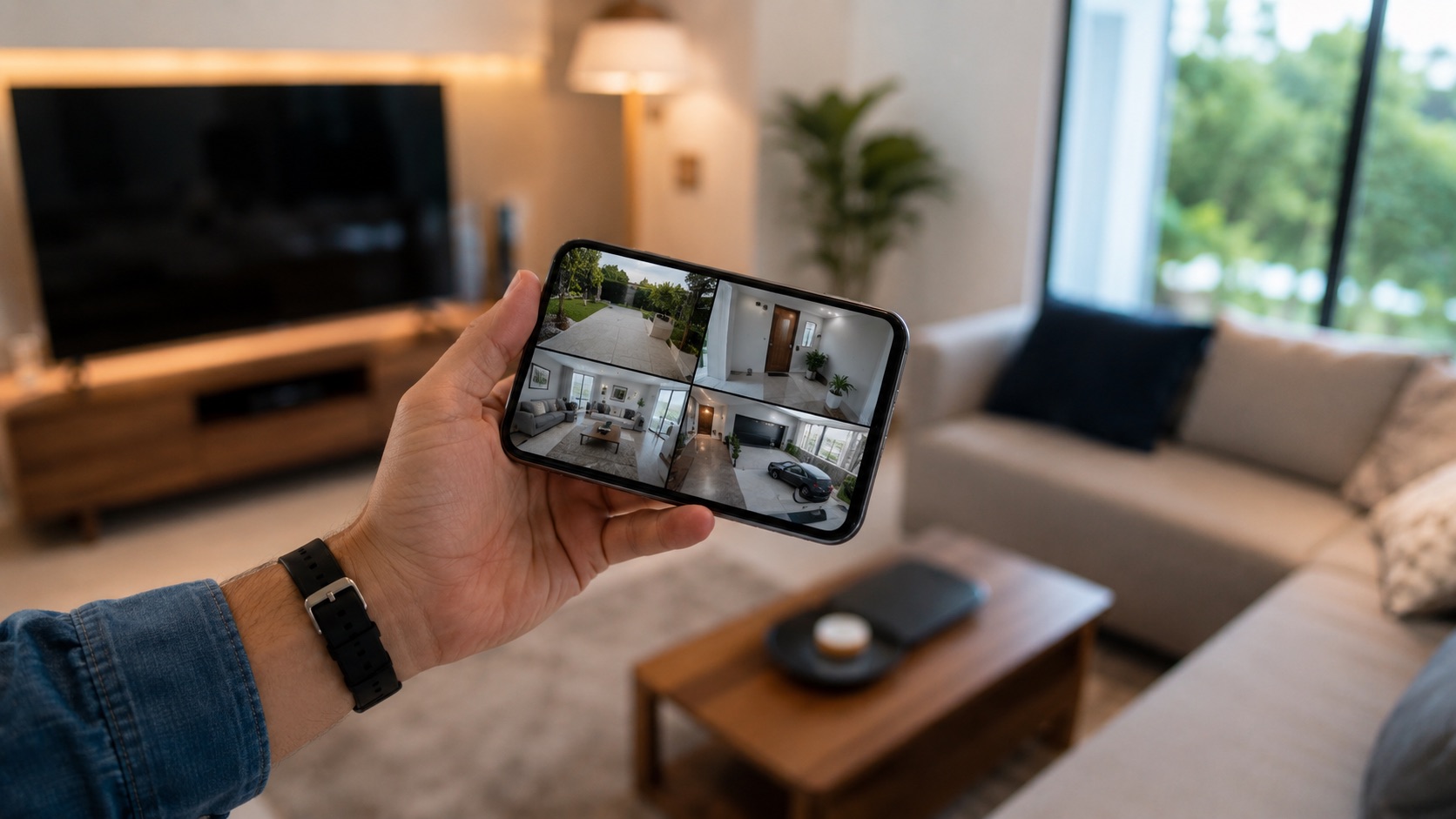
I’ve been running 4 TP-Link Tapo C210 cameras with Home Assistant for over a year now. Total cost: €120 for all four cameras, zero monthly fees, fully local recording to my NAS. Here’s exactly how I set it up and what you need to know before buying.
Why I Chose Tapo Cameras
When I started looking for cameras, I had three requirements: RTSP support (so I could stream locally), no subscription needed for basic features, and a price under €40 per camera. That narrowed things down fast.
I tested the Tapo C210 (indoor pan/tilt, €30 each) and it checked every box. Most camera brands want you locked into their cloud with a monthly fee for clip storage. Tapo does have a cloud option, but unlike Ring or Arlo, the cameras work perfectly fine without it. RTSP streaming is built in, which means I can pipe the feed directly into Home Assistant without touching TP-Link’s servers.
The C210 gives you 2K resolution, 360-degree pan, night vision, and two-way audio for thirty euros. Try finding that from a Western brand at anywhere near that price. You can’t.
If you’re just getting started with smart home tech, check out our guide on starting a smart home from scratch for the bigger picture.
For more local integrations and documented setups, browse the Home Assistant topic guide.
My Camera Setup (Hardware)
Here’s what I’m running:
- 4x TP-Link Tapo C210 (indoor, pan/tilt, 2K)
- 1x mini PC running Home Assistant OS
- 1x Synology NAS for recording storage
- All cameras on a separate VLAN (more on this later)
The C210 is WiFi-only, which means no ethernet cables to run. That’s both an advantage (easy placement) and a downside (depends on your WiFi coverage). I have a mesh system with three access points, and even the camera in my garage maintains a solid connection.
Total hardware cost for the camera system: around €120. Compare that to four Ring Indoor cameras at €50 each plus €100/year for the subscription. After two years, I’ve saved over €200 compared to Ring, and my footage stays on my own hardware.
Step-by-Step: Connecting Tapo to Home Assistant
Step 1: Initial Camera Setup (Tapo App Required)
This is the one part where you need the Tapo app. There’s no way around it. You have to:
- Download the Tapo app (iOS or Android)
- Create a TP-Link account (yes, annoying)
- Add each camera and connect it to your WiFi
- Update firmware (do this, seriously)
Once the camera is on your network and updated, you can mostly forget about the app. I only open it when firmware updates drop.
Step 2: Enable RTSP Streaming
In the Tapo app:
- Go to the camera settings
- Tap “Advanced Settings”
- Find “Camera Account” (sometimes called “Device Account”)
- Create a username and password for RTSP access
Write these down. You’ll need them for Home Assistant. Each camera gets its own RTSP URL in this format:
rtsp://username:password@CAMERA_IP:554/stream1Use stream1 for the high-quality feed (2K) or stream2 for the lower-res stream that’s easier on your network.
Step 3: Add Cameras to Home Assistant
In Home Assistant:
- Go to Settings > Devices & Services
- Click “Add Integration”
- Search for “Generic Camera”
- Enter the RTSP URL from step 2
- Set the stream source to RTSP
That’s it. You’ll see a live feed on your dashboard within seconds. Repeat for each camera.
I recommend using stream2 for the dashboard preview (less bandwidth) and stream1 for recordings. You can configure both streams per camera.
For more on getting Home Assistant running, check our complete beginner guide.
Step 4: Set Up Local Recording
I record to my Synology NAS using the MotionEye add-on, but you can also use Frigate (better for AI detection) or just the built-in recording feature in HA.
My approach with MotionEye:
- Record on motion detection only (saves storage)
- Keep 14 days of footage, auto-delete older
- Store on a network share mounted to the HA machine
Each camera uses about 2-3 GB per day with motion-only recording. With four cameras, that’s roughly 10 GB/day or 140 GB for two weeks of rolling storage. A basic 1TB NAS drive handles this easily.
Step 5: Motion Detection Automations
Here’s where it gets interesting. Instead of relying on Tapo’s cloud-based motion alerts (which have a delay and require internet), I set up motion detection directly in Home Assistant.
My automation triggers:
- Front door camera: Send notification with snapshot when motion detected between 11 PM and 6 AM
- Living room camera: Turn on lights if motion detected and it’s dark
- Garage camera: Alert me if motion detected when I’m away from home
- Kitchen camera: No automation, just recording (I use it to check on my dog)
The motion detection in HA is based on the camera stream pixel changes. It’s not as sophisticated as Frigate’s AI detection, but it works well enough for my needs and requires zero extra hardware.
Network Security: Blocking Cloud Access
Here’s the thing about Tapo cameras (and honestly, most Chinese cameras): they phone home. The cameras regularly connect to TP-Link’s servers in China and the US. If you’re running everything locally, there’s no reason to allow this.
What I did:
- Put all cameras on a separate VLAN (VLAN 30 in my setup)
- Blocked all internet access for that VLAN
- Only allowed traffic from the cameras to my HA machine and NAS
After blocking internet access, the cameras still work perfectly for local streaming. The only thing you lose is remote access through the Tapo app (which you don’t need if you have HA) and firmware updates (temporarily allow internet when you want to update).
This is the approach I recommend for anyone running these cameras. You get the budget hardware without the privacy concerns.
Comparison Table: Budget Cameras for Home Assistant
| Camera | Price | Resolution | RTSP | HA Integration | Pan/Tilt | My Rating |
|---|---|---|---|---|---|---|
| Tapo C210 | €30 | 2K (2304x1296) | Yes | Generic Camera | Yes | 9/10 |
| Tapo C200 | €25 | 1080p | Yes | Generic Camera | Yes | 7/10 |
| Tapo C110 | €22 | 2K | Yes | Generic Camera | No | 7/10 |
| Reolink E1 Zoom | €45 | 5MP | Yes | Reolink integration | Yes | 8/10 |
| Xiaomi C400 | €35 | 2.5K | Unofficial | Difficult | Yes | 5/10 |
| Eufy Indoor C220 | €35 | 2K | Yes (hidden) | Generic Camera | Yes | 6/10 |
I tested the Tapo lineup extensively. The C210 hits the sweet spot of price, quality, and HA compatibility. The Reolink E1 Zoom is better if you need optical zoom, but it costs 50% more. Skip the Xiaomi for HA setups, the RTSP situation is unreliable.
For a broader look at how these brands stack up, see how we compare different smart home products.
What I Like After 1 Year
Rock solid stability. In 12+ months, I’ve had maybe three stream drops total. The cameras just work.
Image quality is genuinely good. 2K resolution at this price was unheard of a few years ago. Night vision is decent too, though not amazing.
Pan/tilt from HA dashboard. You can control the camera direction right from Home Assistant. I use this to check different areas of a room without multiple cameras.
Zero recurring costs. This is the big one. My camera system costs me nothing per month. The hardware paid for itself compared to a subscription service within the first year.
What I Don’t Like
Initial setup requires the app and cloud account. There’s no way to set up these cameras purely locally from the start. You need the Tapo app, and you need a TP-Link account. It’s a one-time annoyance, but it’s still annoying.
Cameras phone home by default. Without VLAN isolation and firewall rules, these cameras are sending data to TP-Link servers. That’s not ideal and requires some network knowledge to fix.
No built-in AI detection. The cameras have “smart detection” features in the Tapo app, but those require cloud. Locally, you’re limited to basic motion detection unless you run Frigate with a Coral TPU (that’s a whole extra setup).
Audio quality is mediocre. Two-way audio works, but don’t expect crystal clear conversations. It’s fine for yelling “stop that” at your dog.
Tips From My Experience
- Use static IPs. Assign each camera a fixed IP in your router. DHCP changes will break your HA streams.
- Update firmware before blocking internet. Get the cameras fully updated, then lock them down.
- Label your cameras clearly in HA. “Camera 1” means nothing at 2 AM. Use “Kitchen Camera” or “Front Door.”
- Use stream2 for dashboards. The lower-res stream uses way less bandwidth and still looks fine on a phone screen.
- Set up snapshot automations. A snapshot on motion is more useful than a notification alone. You can see what triggered it without opening the stream.
Check out our best integrations for Home Assistant for more ideas on what to connect to your setup.
Should You Buy Tapo Cameras for Home Assistant?
If you want budget cameras that work locally with Home Assistant: yes, absolutely. I tested this setup for over a year and it’s been reliable, cheap, and private (once you block the cloud access).
If you want plug-and-play AI detection, person recognition, or package detection without extra hardware, look at Reolink or Frigate-compatible cameras instead. That’s not Tapo’s strength.
For most people building a budget smart home ecosystem, four Tapo C210s with Home Assistant is the best value you’ll find in 2026. €120 total, no subscriptions, your data stays local.
FAQ
Can Tapo cameras work with Home Assistant without internet?
Yes. Once you’ve done the initial setup through the Tapo app, the cameras stream locally via RTSP. I blocked all internet access for my cameras and they work perfectly with Home Assistant. You only need internet temporarily for firmware updates.
Which Tapo camera is best for Home Assistant?
The Tapo C210. It’s €30, has 2K resolution, pan/tilt, and reliable RTSP streaming. I tested it alongside the C200 and C110, and the C210 offers the best combination of features for the price. The pan/tilt is genuinely useful when viewing from your HA dashboard.
Do I need a subscription for Tapo cameras?
No. TP-Link offers a Tapo Care subscription for cloud storage, but it’s completely optional. With Home Assistant and local recording to a NAS, you get the same functionality (motion alerts, recording, remote viewing) without paying monthly. That’s the whole point of this setup.
How much storage do Tapo cameras use with local recording?
With motion-only recording at 2K resolution, each camera uses about 2-3 GB per day in my experience. Four cameras over 14 days of rolling storage needs roughly 140-170 GB. A basic NAS with a 1TB drive gives you plenty of headroom. If you record 24/7, expect about 15 GB per camera per day.
Are Tapo cameras a security risk?
They phone home to TP-Link servers by default, which is a legitimate concern. My solution: put them on a separate VLAN and block all internet access. This way they can only communicate with your Home Assistant machine and NAS. After blocking, they function identically for local use. Read more about Chinese camera privacy concerns in our dedicated article.