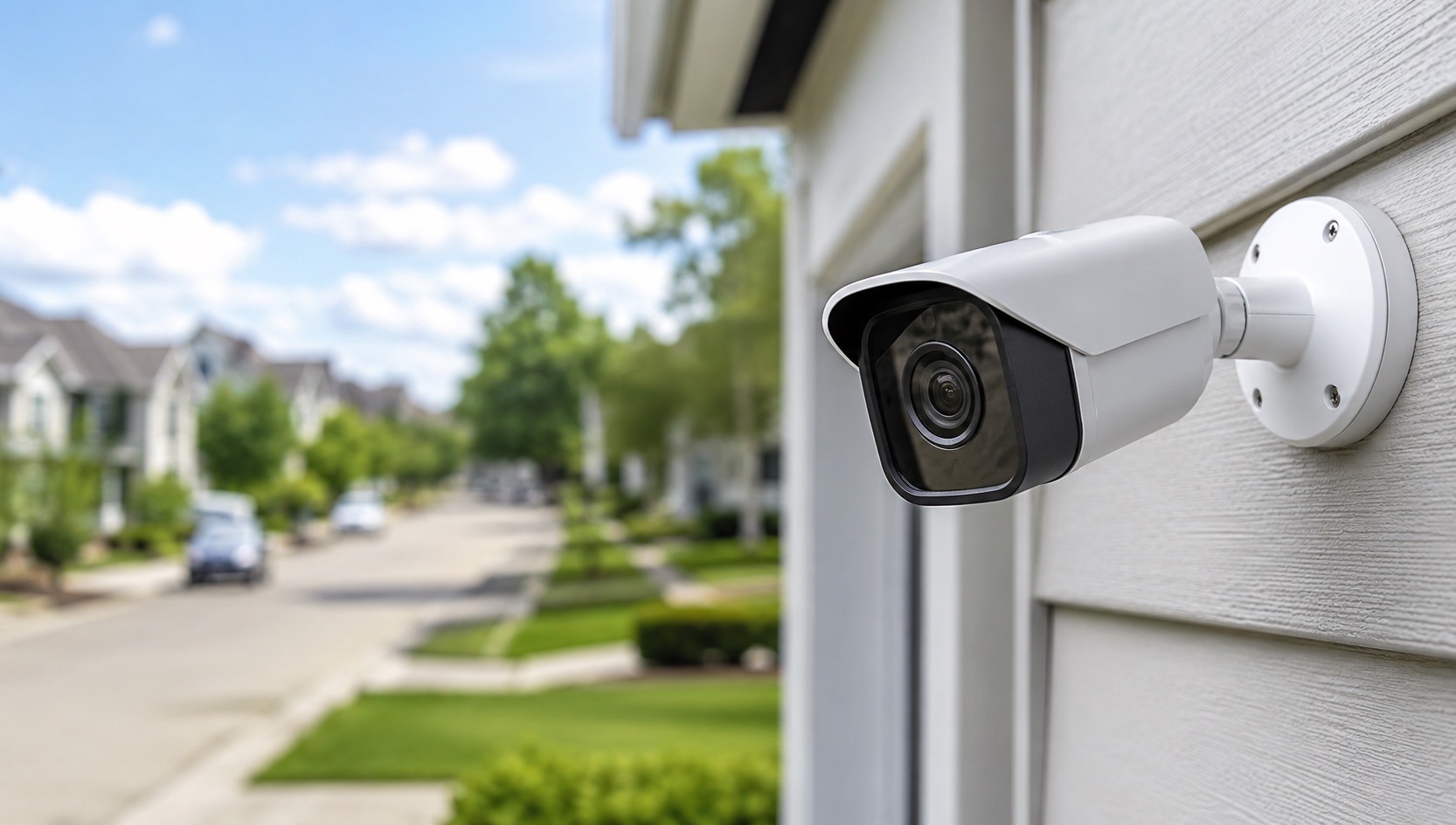
My PoE Camera Setup: Reolink + Ubiquiti (Full Walkthrough)
My PoE Camera Setup: Reolink + Ubiquiti (Full Walkthrough)
I run six PoE security cameras recording 24/7 to a local NVR. No cloud subscriptions, no internet dependency, no company watching my footage. Total cost was about $600. Here’s exactly what I bought, how I set it up, and what I’d do differently.
Why PoE? Why Local?
Power over Ethernet means one cable per camera handles both data and power. No separate power adapters, no WiFi dropouts, no battery swaps. The camera gets a reliable wired connection and steady power from the switch. If your internet goes down, recordings continue. If the power goes out, only the cameras lose power (you can add a UPS to the switch for even that edge case).
Local storage means your footage lives on a hard drive in your house. Not on Amazon’s servers. Not behind a subscription paywall. Not accessible to anyone without physical access to your NVR. This matters more than most people realize, and I’ve written extensively about why in our security and privacy guide.
This is the strongest first-party setup in our security camera topic guide, which also covers buyer choices, placement and network isolation.
My Complete Hardware List
| Component | Model | Price | Role | Why I Chose It |
|---|---|---|---|---|
| Cameras (x6) | Reolink RLC-810A | $55 each ($330) | 4K recording, night vision | Best value 4K PoE camera |
| PoE Switch | Ubiquiti USW-Lite-8-PoE | $110 | Powers cameras, network | 52W budget, 8 ports, reliable |
| NVR | Reolink RLN8-410 | $130 | Recording, playback | Pre-installed 2TB HDD, simple |
| Cabling | Cat6 bulk (300ft) | $50 | Connections | Outdoor-rated, future-proof |
| Connectors | RJ45 pass-through (x20) | $15 | Termination | Tool-free, weatherproof boots |
| Mounting | Camera junction boxes (x6) | $30 | Clean installs | Hides cable entry, weatherproof |
Total: ~$665 (or about $600 if you find sales, which Reolink runs frequently)
Compare that to Ring: six cameras would run $1,200+ for hardware, then $240/year for Ring Protect Plus. After two years you’ve spent $1,680. After five years: $2,400. My system: still $665, recording forever.
Camera Choice: Reolink RLC-810A
I tested several PoE cameras before settling on the RLC-810A. At $55, it shoots 4K (8MP), has solid night vision (up to 30m IR), and works completely offline. No app required for recording. No cloud account needed. Plug it into a PoE port and the NVR finds it automatically.
The image quality is genuinely impressive for the price. Daytime footage is sharp enough to read license plates at 15 meters. Night vision is black-and-white IR but illuminates clearly. The 4K resolution gives you plenty of room to digitally zoom in post without losing detail.
One thing I’d change: for the driveway camera, I should have bought the RLC-823A (PTZ model, $100). A camera with pan-tilt-zoom would let me cover the full driveway width without mounting two fixed cameras. That’s my only regret.
For a deeper dive into the full Reolink lineup, see our Reolink cameras complete guide.
The PoE Switch: Ubiquiti USW-Lite-8-PoE
I chose Ubiquiti because I already run their networking gear (more on that in our Ubiquiti vs consumer mesh comparison). The USW-Lite-8-PoE has 8 Gigabit ports, 4 of which deliver PoE (52W total budget). That’s enough for 6 cameras: four on the PoE ports, two daisy-chained through a passive PoE injector since the lite model only has 4 PoE ports.
Wait, let me be specific: I actually use the USW-Lite-8-PoE for 4 cameras and added a $30 TP-Link TL-SG1005P for the other 2. In hindsight, I should have bought the USW-Lite-16-PoE ($190) from the start. Planning for more ports than you think you’ll need is always the right call.
The Ubiquiti switch also lets me create VLANs, which means I isolate camera traffic from my main network. I covered this in detail in my VLAN isolation guide.
For the full PoE switch comparison, check our best PoE switches for security cameras guide.
The NVR: Reolink RLN8-410
The RLN8-410 is Reolink’s 8-channel NVR. It comes with a 2TB hard drive pre-installed, which gives me about 30 days of continuous recording across 6 cameras at 4K (with motion-based quality switching: 4K on motion, lower resolution otherwise).
Setup is dead simple. Connect the NVR to the same network as your cameras. It auto-discovers them. Assign each camera to a channel. Done. You can access the NVR’s web interface from any device on the network for live viewing and playback.
The NVR handles motion detection, scheduling, and basic alerts (email notification on motion). I don’t use the email alerts because I’ve integrated it with Home Assistant via ONVIF for smarter notifications, but the standalone functionality is complete.
For a broader comparison of NVR options, see our best NVR systems guide.
Cable Routing: The Physical Work
This is the part nobody talks about in YouTube reviews. Running Cat6 cable through an attic to six camera locations took me an entire weekend. Here’s my approach:
- Plan camera positions first (draw it on your house floor plan)
- Run all cables from camera locations back to a central point (my utility closet)
- Use the attic/crawlspace wherever possible
- Drill through exterior walls with a slight downward angle (prevents water ingress)
- Use silicone caulk around all exterior cable entries
- Use junction boxes at every camera mount point (clean look, weather protection)
I used outdoor-rated Cat6 for any run that goes through unheated spaces or near exterior walls. The extra cost ($50 for 300ft vs $30 for indoor-rated) is worth it for the UV and moisture resistance.
Key tip: Pull an extra cable to each location while you’re up there. Future you will thank current you when you want to add a second camera or replace a cable that a rodent chewed.
Camera Placement Strategy
My six cameras cover:
- Front door (obvious): Captures anyone approaching the entrance
- Driveway (should be PTZ): Covers car and package deliveries
- Back garden (wide angle): Full yard coverage
- Side passage: The one blind spot burglars love
- Garage interior: High-value items, motion-only recording
- Shed/workshop: Directed at the door entry point
Placement rules I follow:
- Mount at 2.5-3m height (out of easy reach, good angle)
- Angle slightly downward (catches faces, not sky)
- Avoid pointing directly at neighbor’s property (privacy and also overexposure from their lights)
- Position IR cameras away from walls (to prevent IR washout/reflection)
Total Cost vs Cloud Alternatives
Let’s be explicit about the math:
My local setup (one-time cost):
- Hardware: $665
- Cabling (weekend of work): $65 in materials
- Year 1 total: $730
- Year 2 total: $730 (no recurring costs)
- Year 5 total: $730
Ring equivalent (6 cameras):
- Hardware: 6x Ring Spotlight Cam ($200 each) = $1,200
- Ring Protect Plus: $240/year
- Year 1 total: $1,440
- Year 2 total: $1,680
- Year 5 total: $2,160
I save $1,430 over 5 years AND keep complete privacy AND have better video quality AND don’t depend on internet for recording. The only downside is the initial labor of running cables.
What I’d Change (Lessons Learned)
After a year of running this setup:
- Get a PTZ for the driveway: Fixed cameras have a fixed field of view. The driveway is wide and I miss package deliveries at the edges.
- Buy more ports from day one: I started with an 8-port switch for 6 cameras. No room to grow. Get 16 ports minimum.
- Add a UPS: A small UPS ($60) on the PoE switch means recording continues during power outages. I’ve since added one.
- Label every cable: At both ends. I didn’t do this initially and regretted it when troubleshooting one camera.
- Mount the NVR somewhere secure: Mine is in a locked utility closet. If someone breaks in and steals the NVR, you lose footage. Some people keep it in a locked safe or attic.
Integration with Home Assistant
The cameras work standalone via the NVR, but I’ve also connected them to Home Assistant via ONVIF. This gives me:
- Live camera feeds on my HA dashboard
- Motion events triggering HA automations (turn on floodlights, send phone notification)
- Snapshot captures embedded in notifications
- Recording clips accessible through HA’s media browser
The ONVIF integration is straightforward. Add it through HA’s integration page, point it at each camera’s IP, and it discovers all available streams.
FAQ
How much hard drive space do I need for 6 cameras?
With 4K recording at motion-adaptive quality, the 2TB drive in the NVR gives me approximately 30 days of retention across 6 cameras. If you want 60+ days, go for a 4TB drive ($80 for a surveillance-rated WD Purple). Pure continuous 4K recording eats about 1TB per camera per month.
Can I view cameras remotely without cloud?
Yes, but it requires some setup. I use Tailscale (free for personal use) to create a VPN tunnel. From anywhere, I can access my NVR’s web interface as if I’m on my home network. Alternatively, WireGuard on a Ubiquiti gateway works. I never expose camera ports directly to the internet.
Do Reolink cameras work in extreme weather?
The RLC-810A is IP66 rated (dust-tight, resistant to powerful water jets). I’ve tested mine through a full year of Belgian weather: rain, frost, summer heat. No failures. The junction boxes help protect the cable connections, which are the real weak point in outdoor installations.
Is PoE really better than WiFi cameras?
For permanent installations, absolutely. PoE gives you consistent bandwidth (no signal dropouts), reliable power (no batteries to charge), lower latency for live viewing, and VLAN isolation capability. WiFi cameras make sense for rental properties where you can’t run cables. For anything permanent, PoE wins every time.
What happens if my internet goes down?
Nothing changes. The cameras record to the local NVR over your internal network. Internet is irrelevant. I’ve tested this by unplugging my WAN cable: all six cameras continued recording without interruption. You only need internet for remote viewing (via VPN) and the occasional firmware check.
Wrapping Up
This setup has been running 24/7 for over a year now. Zero subscription costs, complete privacy, 4K footage available anytime. The hardest part is running the cables. Everything else is plug-and-play.
If you’re considering a similar setup, start with 2-3 cameras and expand. Buy more PoE ports than you think you need. And please, keep your cameras off the internet with a proper VLAN configuration.