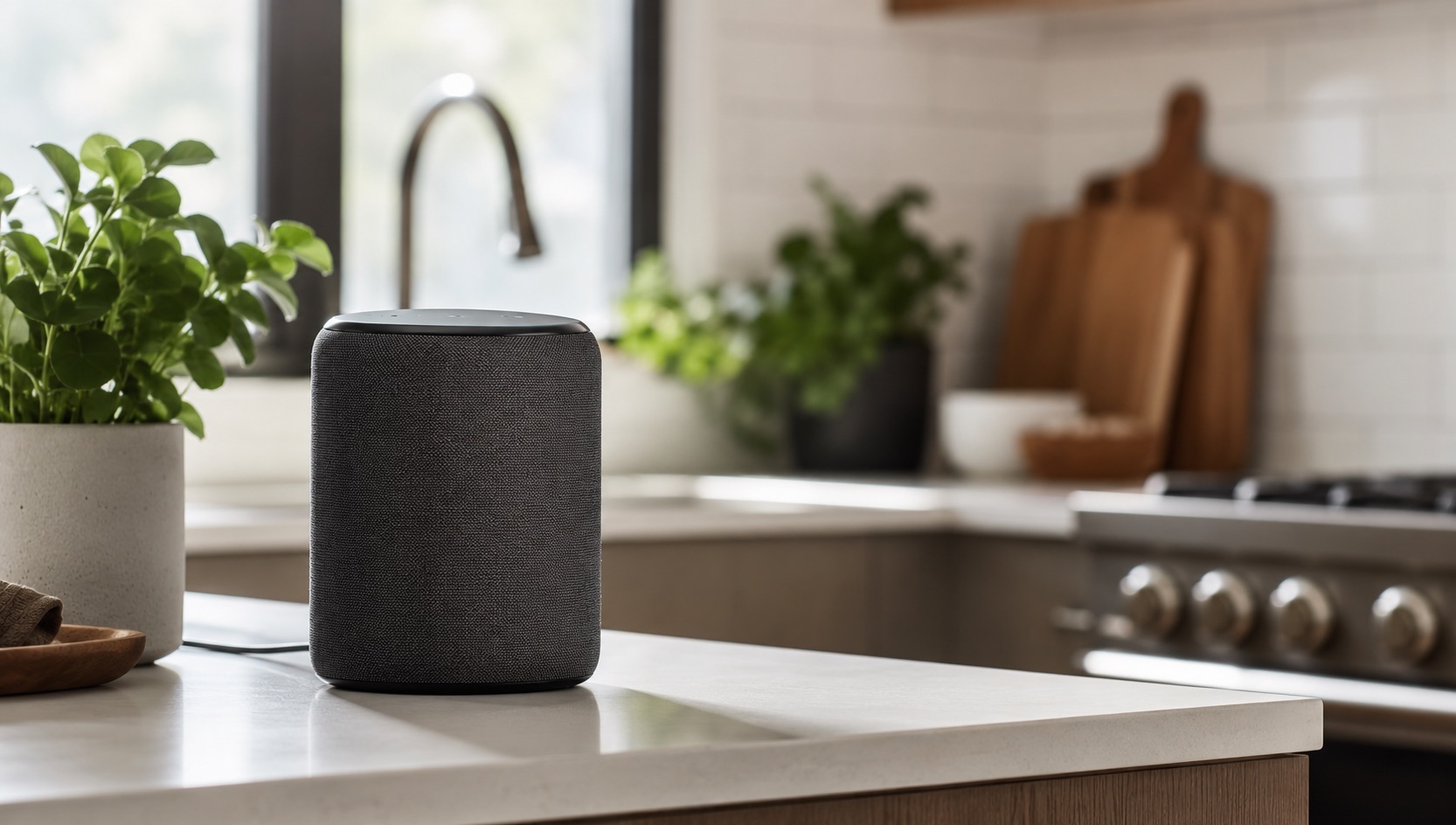
Illustrative image, not evidence of a product test.
Smart Home Voice Control Tips and Tricks (2026)
Voice control should feel effortless. But if you’ve ever repeated “Hey Google, turn off the living room light” three times while it turned off the wrong one, you know the reality. The problem isn’t the technology—it’s the setup. Bad device names, missing room groups, and unused features turn voice assistants into frustration machines.
This guide covers the advanced tips that transform voice control from a novelty into a genuinely faster way to manage your smart home. Whether you use Alexa, Google Assistant, or Siri, these tricks work across all platforms.
Already choosing between smart speakers? Check our comparison of the Echo Show vs Nest Hub vs HomePod to pick the right hardware.
Device Naming Best Practices
The single biggest improvement to voice control is renaming your devices properly. Your assistant parses your voice command into a device name and an action. If device names are long, similar, or confusing, recognition fails.
Rules for naming:
- Keep names short: “Bedroom light” not “Philips Hue Color A19 Bedroom Ceiling Light 2”
- Use room + function: “Kitchen fan,” “Office lamp,” “Hallway motion”
- Avoid numbers unless necessary: “Living room light” is fine if there’s only one. Use “Couch lamp” and “TV light” instead of “Living room 1” and “Living room 2”
- Don’t include brand names: Your assistant doesn’t need to know it’s a Philips Hue. Call it “Desk light”
- Use distinct words: “Hall light” and “Tall light” sound identical. Use “Hallway light” and “Floor lamp” instead
- Avoid special characters and emojis: They work in apps but confuse voice parsing
Bad names vs good names:
| Bad Name | Problem | Better Name |
|---|---|---|
| Philips Hue Color A19 #2 | Too long, includes brand | Bedroom lamp |
| Light 1 | Generic, no room context | Nightstand light |
| Living Room Overhead Light | Verbose | Living room light |
| 🌙 Night Light | Emoji in name | Hallway nightlight |
| Fan | No room context | Bedroom fan |
Room Groups: The Key to Natural Commands
Room groups let you say “turn off the bedroom” and control every device in that room at once. Every platform supports them, but many people never set them up properly.
Setting up rooms:
- Alexa: Devices → Groups → Create Room → Assign devices
- Google Home: Home → Room → Add devices to room
- Apple Home: Long-press device → Settings → Room → Assign
Pro tip: Assign your speaker to the same room as its devices. When you say “turn off the lights” to a bedroom speaker, it targets that room’s lights automatically—no need to specify the room name.
What rooms groups enable:
- “Turn off the bedroom” → All lights, fan, and TV in that room
- “Set the living room to 50%” → All lights dim together
- “Is anything on in the kitchen?” → Status of all kitchen devices
Multi-Step Routines via Voice
Single commands are fine. But the real power is triggering entire scenes with one phrase. Every platform lets you create routines that execute multiple actions from a single voice command.
Example routines:
“Alexa, goodnight”
- Lock all doors
- Turn off all lights except hallway nightlight (dimmed to 5%)
- Set thermostat to 68°F
- Arm security system in Stay mode
- Set a 7:00 AM alarm
- Play white noise on bedroom speaker
“Hey Google, movie time”
- Dim living room lights to 10%
- Turn off kitchen lights
- Turn on TV and switch to streaming input
- Close blinds
“Hey Siri, I’m leaving”
- Turn off all lights
- Lock front door
- Set thermostat to away mode
- Start robot vacuum
Platform capabilities for routines:
Alexa supports the most trigger types and actions natively. Google Home has improved significantly with household routines and script editor. Siri Shortcuts can chain HomeKit actions with app automations but requires more manual configuration.
Follow-Up Mode and Continuous Conversation
Normally you need to say the wake word before every command. Follow-up mode keeps the microphone active for a few seconds after a response, so you can chain commands naturally.
“Alexa, turn on the kitchen lights.” [Alexa responds] “And set them to 50%.” [Works without saying “Alexa” again]
Setup:
- Alexa: Settings → Device Settings → [Speaker] → Follow-Up Mode → On
- Google Assistant: Enabled by default as “Continued Conversation” — Settings → Assistant → Continued Conversation
- Siri: Not available. Each command requires “Hey Siri”
This feature is surprisingly useful for multi-room control: “Turn on the living room lights. Now turn off the bedroom. Set the office to warm white.”
Whisper Mode for Night
When you whisper to your assistant, it whispers back and executes commands at lower volume. Perfect for nighttime commands when you don’t want to wake anyone.
Setup:
- Alexa: Settings → Voice Responses → Whisper Mode → On. Alexa detects your whisper automatically
- Google Assistant: Not available as whisper detection. Use “Hey Google, set volume to 20%” as a workaround, or Night Mode in speaker settings for quieter responses
- Siri: Not available
Once enabled on Alexa, simply whisper your command: “Alexa, what time is it?” and she’ll whisper the response back. Also useful for checking door locks and security status without waking a partner.
Broadcast and Intercom Features
Use your smart speakers as a whole-home intercom system. Broadcast a message to every speaker, or communicate between specific rooms.
Broadcast (one to all):
- Alexa: “Alexa, announce dinner is ready” → Plays on all Echo devices
- Google: “Hey Google, broadcast dinner is ready” → Plays on all Nest/Home speakers
- Siri: Not supported natively. Use HomePod Intercom for Apple devices only
Room-to-room (one to one):
- Alexa: “Alexa, drop in on the kitchen” → Opens a two-way audio channel
- Google: “Hey Google, broadcast to the bedroom, time to wake up”
- Siri: “Hey Siri, intercom upstairs” → Plays on HomePods in the upstairs zone
Practical uses:
- Announce dinner without walking upstairs
- Check on kids in their room via drop-in
- Tell the family you’re leaving in 5 minutes
- Call everyone to the living room for movie night
Voice Match for Personalized Responses
Voice Match (Google) and Voice Profiles (Alexa) identify who is speaking and personalize responses accordingly. This means your music preferences, calendar events, and shopping lists are individual—not shared.
What personalization enables:
- “What’s on my calendar?” → Shows YOUR calendar, not your partner’s
- “Play my playlist” → Plays YOUR Spotify Discover Weekly
- Music plays on YOUR account (important for family Spotify plans)
- “What are my notifications?” → Only YOUR notifications
Setup:
- Alexa: Settings → Your Profile → Voice ID → Train Alexa to recognize your voice
- Google: Open Google Home → Settings → Google Assistant → Voice Match → Add your voice
- Siri: Automatically recognizes the Apple ID owner of the device. Limited multi-user on HomePod via voice recognition
Tip: Every household member should set up their voice profile. Without it, all commands default to the primary account holder’s preferences and information.
Custom Routines With Custom Phrases
Beyond preset commands, you can invent any trigger phrase you want. This lets you create natural-sounding shortcuts for complex automations.
Creative custom phrases:
| Custom Phrase | What It Does |
|---|---|
| ”Alexa, I’m cold” | Raise thermostat by 2°F, turn on space heater plug |
| ”Hey Google, party mode” | Colorful lights, turn on speaker group, set volume to 70% |
| “Alexa, I can’t sleep” | Play sleep sounds, dim lights to 1%, set sleep timer |
| ”Hey Google, working from home” | Turn on office light, set DND on speakers, start focus playlist |
| ”Alexa, panic” | All lights on, siren plays, notification sent to family |
Setting up custom phrases:
- Alexa: Routines → When this happens → Voice → Type your custom phrase
- Google: Routines → Add starter → Voice command → Type custom phrases (supports multiple trigger phrases for one routine)
- Siri/Shortcuts: Create a Shortcut → Add to Siri → Record your custom phrase
Voice Control Feature Comparison Table
| Feature | Alexa | Google Assistant | Siri | Best Platform |
|---|---|---|---|---|
| Custom trigger phrases | ✓ Unlimited | ✓ Multiple per routine | ✓ Via Shortcuts | Alexa |
| Follow-up mode | ✓ Per device toggle | ✓ Continued Conversation | ✗ Not available | |
| Whisper mode | ✓ Auto-detection | ✗ Night mode only | ✗ Not available | Alexa |
| Broadcast/Intercom | ✓ Announce + Drop-in | ✓ Broadcast + room target | ◐ Intercom (HomePod only) | Alexa |
| Voice Match/Profiles | ✓ Up to 6 voices | ✓ Up to 6 voices | ◐ Limited multi-user | |
| Room-aware commands | ✓ Speaker-based room | ✓ Speaker-based room | ✓ Room-based | Tie |
| Multi-step routines | ✓ Extensive actions | ✓ Script editor + actions | ◐ Via Shortcuts only | Alexa |
| Smart home device support | ✓ 140,000+ devices | ✓ 80,000+ devices | ◐ HomeKit only + Matter | Alexa |
| Natural language understanding | Good | Excellent | Good | |
| Response speed | Fast | Fast | Fastest (on-device) | Siri |
Legend: ✓ = Full support | ◐ = Partial/limited | ✗ = Not available
Advanced Tips Across All Platforms
Group speakers for multi-room audio. Create speaker groups so “Play jazz in the house” fills every room. All three platforms support this.
Use “everywhere” commands. “Turn off everything” or “Turn off all the lights” works as a master switch. Useful for leaving the house.
Set preferred music services. Set Spotify, Apple Music, or YouTube Music as the default so you don’t have to say “on Spotify” every time.
Create device groups beyond rooms. “Downstairs lights” or “All fans” let you control logical groups that span multiple rooms.
Use time-based routines as backup. If voice recognition fails, scheduled routines for common actions (lights off at midnight, thermostat adjustment at 10 PM) ensure your home still automates.
For more on choosing the right smart home platform, read our smart home ecosystem comparison. If you’re investing in a display-based speaker, we cover the best options in our smart displays guide.
FAQ
Which voice assistant is best for smart home control overall?
Alexa leads for smart home specifically. It supports the most devices (140,000+), has the most powerful routine engine, and features like whisper mode and drop-in are genuinely useful for home management. Google Assistant has better natural language understanding and answers general questions more accurately. Siri is fastest for HomeKit devices but limited in third-party support. If smart home is the priority, choose Alexa. If you’re deep in the Apple ecosystem, Siri with HomeKit and Matter is improving rapidly.
Why does my assistant keep triggering the wrong device?
Almost always a naming problem. If you have “Living room light” and “Living room lamp” and say “turn off the living room light,” the assistant may guess wrong. Solutions: rename to distinct names (“Ceiling light” and “Couch lamp”), ensure devices are assigned to correct rooms, and remove duplicate devices that sometimes appear after re-pairing. Also check that old/removed devices aren’t lingering in your device list.
Can I use multiple voice assistants in the same home?
Yes, and many people do. A common setup is Alexa for smart home control and routines, Google for kitchen queries and recipes, and HomePod for Apple Music and HomeKit. The key is assigning clear roles. Don’t put competing assistants in the same room—it leads to both responding. Most smart devices work with all three platforms simultaneously, so the same light can respond to any assistant.
Do voice commands work when my internet is down?
Mostly no. Alexa, Google Assistant, and Siri (on HomePod) all require internet for processing voice commands. The exceptions: some Echo devices now support local voice processing for basic commands (lights on/off, volume), and Home Assistant with local voice processing (Whisper + Piper) works entirely offline. If internet reliability is a concern, consider Home Assistant’s local voice pipeline as a backup.
How do I stop my assistant from activating accidentally?
False activations happen when the assistant hears something similar to its wake word. Solutions: change the wake word (Alexa offers “Amazon,” “Echo,” “Computer,” or “Ziggy”), reduce microphone sensitivity in device settings, move speakers away from TVs (common false-trigger source), and use the physical mute button during shows or podcasts. Google allows wake word sensitivity adjustments per device in the Home app.