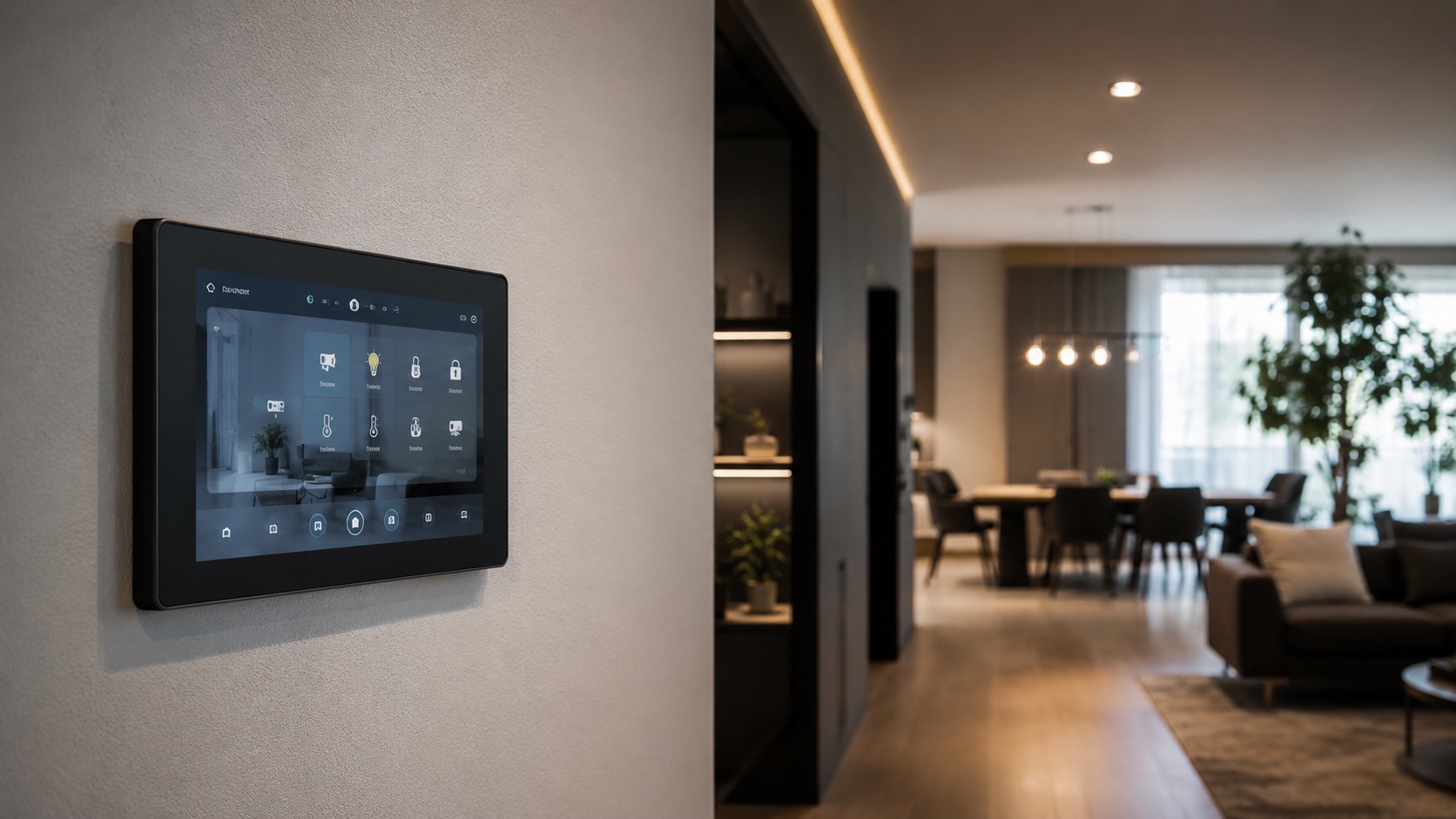
Illustrative image, not evidence of a product test.
Best Smart Home for Multi-Generational Homes (2026)
Multi-generational living is surging in 2026 — adult children moving back home, aging parents joining their kids’ households, or families building accessory dwelling units for grandparents. The challenge? Everyone has different comfort preferences, tech literacy levels, privacy needs, and daily schedules.
Smart home technology solves this by creating personalized zones within a shared home. Grandparents get warm, bright lighting and simple voice controls. Teenagers get RGB ambiance and app-based automation. Shared spaces find compromise settings that work for everyone. And critically, privacy boundaries remain respected — no one’s bedroom ends up on a shared camera feed.
This guide covers zone-by-zone solutions for heating, cooling, lighting, access, privacy, and interfaces that actually work across generations.
Zone Heating and Cooling
The biggest source of conflict in multi-generational homes? Temperature. Grandparents typically prefer 72–75°F. Young adults are comfortable at 68–70°F. Teenagers want it cooler for sleeping. A single thermostat can’t satisfy everyone — but zone control can.
Per-Suite Thermostat Systems
If your home has separate HVAC zones (common in newer construction or homes with additions), each zone gets its own smart thermostat:
Ecobee Premium ($250 per zone) — Each family unit controls their own zone via their own app account. Remote sensors detect occupancy in each suite, adjusting temperature when someone is home vs. away. The grandparents’ in-law suite stays at 73°F while the main house runs at 69°F.
Google Nest Learning Thermostat ($280 per zone) — Learns each zone’s patterns independently. The upstairs teen bedrooms learn a “sleep cool” pattern while the ground-floor grandparent suite learns a “warm morning” pattern.
Thermostatic Radiator Valves (TRVs) for Existing Systems
Most older homes don’t have multi-zone HVAC. TRVs solve this without major renovations by controlling temperature at each radiator independently:
Aqara Radiator Thermostat E1 ($45 per valve) — Zigbee-connected, works with Home Assistant or Aqara’s own hub. Set each room to its own schedule and target temperature. The living room runs warmer during the day, bedrooms cool at night — all independently.
tado° Smart Radiator Thermostat ($70 per valve) — Works with tado’s app for room-by-room scheduling. Detects open windows and automatically reduces heating to save energy.
For a detailed breakdown of thermostats and climate control, see our best smart thermostat guide for 2026.
Temperature Compromise for Shared Spaces
Shared areas like the living room and kitchen need compromise settings:
- Average preference — Set shared spaces to the midpoint (70–71°F for most families)
- Time-based priority — Morning and evening (when grandparents use the living room most) runs warmer; afternoon (when teens dominate) runs cooler
- Smart blankets and fans — Supplement with personal comfort devices rather than fighting over the thermostat
Zone Lighting Preferences
Lighting preferences vary dramatically across generations. Older adults need brighter light for reading and tasks, and prefer warm color temperatures that are easier on aging eyes. Teenagers want moody RGB, dim ambiance, and colored accent lighting. Young adults fall somewhere in between.
Grandparents: Warm and Bright
Aging eyes need 2–3x more light than younger eyes for the same task. Smart lighting for older adults should prioritize:
- High brightness — 800+ lumens per fixture, with easy dimming for evening
- Warm color temperature — 2,700–3,000K is comfortable and reduces glare
- No complex interfaces — Voice control (“Alexa, lights on”) or simple physical switches
- Night lighting — Motion-activated hallway and bathroom lights at low brightness for safe nighttime navigation
Philips Hue White Ambiance ($25–$40 per bulb) in grandparents’ rooms, set to 3,000K at maximum brightness during the day, dimming to 2,200K in the evening.
Teenagers: RGB and Ambiance
Teens want control over their space’s mood:
- RGB color bulbs — Philips Hue Color ($50 per bulb) or Govee RGBIC strips ($30–$60)
- Scenes — Gaming mode (purple/blue), study mode (cool white), movie mode (dim warm), sleep mode (red/amber)
- App control — Full customization from their phone
- Music sync — Govee or Philips Hue Sync for reactive lighting during music and gaming
Shared Spaces: Compromise Settings
The living room, kitchen, and dining area need settings that work for everyone:
- Default daytime — Bright, warm white (3,000K, 100%) serves older adults while remaining comfortable for younger ones
- Evening mode — Moderate warmth and brightness (2,700K, 70%) activates after dinner
- Movie night — Dim, warm bias lighting that older adults can still navigate safely
- Physical override — A smart switch on the wall that anyone can press, regardless of tech literacy
Separate Smart Lock Codes Per Family Unit
In multi-generational homes, each family unit should have their own entry code — especially if there are separate entrances to in-law suites or ADUs.
Implementation
Yale Assure Lock 2 ($250) or Schlage Encode Plus ($300) — Both support 100+ unique codes. Assign code ranges by family unit:
- Codes 01–10 — Grandparents (simple, memorable PINs)
- Codes 11–20 — Parents
- Codes 21–30 — Teenagers
- Codes 31–40 — Frequent visitors (cleaning service, healthcare aide)
For a full comparison of smart locks, see our smart locks guide for 2026.
Benefits of Individual Codes
- Know who’s home — The app shows which code was used and when
- Age-appropriate curfews — Teen codes can trigger notifications after a set hour
- Caregiver access — Healthcare aides get time-limited codes that expire after their shift
- Emergency access — Share a temporary code with a neighbor for emergencies without giving permanent access
- Independence — Grandparents come and go without waiting for someone to unlock the door
Auto-Lock and Safety
Enable auto-lock after 30 seconds on shared entrance doors. For grandparents who might forget their code, add a fingerprint-enabled lock or pair with an Apple Watch/smartphone for tap-to-unlock as a backup.
Privacy: Individual Rooms Off Shared Cameras
This is critical. Indoor cameras in shared areas (living room, kitchen, entry) are reasonable for security. But individual bedrooms and private suites must be camera-free zones — full stop.
Privacy Boundaries
Camera placement rules:
- ✅ Front door, back door, garage — security cameras appropriate
- ✅ Shared living room — only if all adults consent
- ❌ Individual bedrooms — never
- ❌ Bathrooms — never (and illegal in most jurisdictions)
- ❌ Private suite living areas — only with explicit consent of that family unit
Technical Privacy Controls
Separate accounts — Each family unit manages their own room’s devices through their own account. Grandparents’ smart speaker isn’t linked to the teens’ account.
Activity zones — If a shared-area camera’s field of view includes a private doorway, use privacy zones (masked areas) to block that portion of the feed.
Individual voice profiles — Set up voice recognition on smart speakers so each person’s commands, music history, and shopping lists remain private.
Network separation — Consider separate IoT networks for each unit if privacy is paramount. Each family’s devices connect to their own VLAN and can’t see each other’s traffic.
Shared Areas: Kitchen and Living Room Compromise Settings
Shared spaces need automation that respects everyone’s preferences without requiring constant manual adjustment.
Kitchen Automation
- Bright task lighting — Under-cabinet LEDs at full brightness during cooking (benefits older adults)
- Exhaust fan automation — Smart plug triggers the fan when cooking is detected (smoke/humidity sensor)
- Timer integration — Smart displays show multiple concurrent cooking timers for multi-generational meals
- Voice announcements — “Dinner is ready” broadcast to all speakers in the house
Living Room Scenes
Create named scenes everyone can trigger by voice:
- “Family time” — Bright, warm lights, comfortable temperature, TV ready
- “Movie night” — Dim bias lighting, blinds closed, sound system active
- “Reading” — Bright, focused light on seating areas (for grandparents)
- “Goodnight” — Lights dim, doors lock, thermostat adjusts for overnight
Scheduling Shared Spaces
- Morning (6–9 AM) — Bright lights, warmer temperature (grandparents typically rise earlier)
- Daytime (9 AM–5 PM) — Moderate lighting, standard temperature
- Evening (5–10 PM) — Warm lighting, family time settings
- Night (10 PM+) — Minimal lighting, motion-activated nightlights only
Age-Appropriate Interfaces
The biggest failure point in multi-generational smart homes is interface design. A 78-year-old shouldn’t need to navigate a phone app to turn on lights. A 15-year-old won’t use a wall panel when their phone is faster. The solution: multiple control methods for the same devices.
Voice Control for Elderly Family Members
Voice is the most accessible interface for older adults — no screens to read, no apps to navigate, no buttons to find.
Amazon Echo Dot ($50) or Google Nest Mini ($30) — Place one in each room the grandparents use. Teach simple commands:
- “Alexa, turn on my lights”
- “Alexa, set temperature to 73”
- “Alexa, lock the front door”
- “Alexa, call [family member]”
Pro tip: Use custom routines with natural language. Instead of requiring “Alexa, activate goodnight scene,” set up “Alexa, I’m going to bed” as the trigger phrase.
App Control for Teenagers
Teens want granular control from their phones:
- Full RGB color selection
- Custom scenes they’ve built themselves
- Music integration with Spotify
- Automation creation (light sync with gaming, wake-up routines)
- Do Not Disturb scheduling for their room
Give teens admin access to their own room’s devices only — not the whole house.
Wall Panels for Everyone
Physical controls that don’t require any account or device:
Lutron Pico remotes ($20) — Battery-powered buttons that mount anywhere. Label them clearly: “Lights On,” “Lights Off,” “Dim.” Works even during internet outages.
Smart light switches — Lutron Caséta ($60) or Inovelli Blue ($55) provide physical on/off that overrides any automation. Critical for older adults who instinctively reach for the wall switch.
Tablet dashboards — A wall-mounted tablet (Amazon Fire HD 8, $100) running a simple dashboard with large buttons for common actions. Great for shared hallways where everyone passes.
Multi-Generational Smart Home Comparison Table
| Family Member | Need | Solution | Device | Price |
|---|---|---|---|---|
| Grandparents | Warm, bright lighting | High-lumen warm bulbs, voice control | Philips Hue + Echo Dot | $150 |
| Grandparents | Easy temperature control | Voice-controlled thermostat | Ecobee Premium + voice | $250 |
| Grandparents | Safe nighttime navigation | Motion-activated nightlights | Philips Hue motion sensors (3) | $120 |
| Grandparents | Independent entry | Simple PIN code, auto-unlock | Yale Assure Lock 2 | $250 |
| Teenagers | RGB room ambiance | Color bulbs + LED strips, app control | Govee RGBIC + Hue Color (3) | $180 |
| Teenagers | Privacy from shared systems | Separate account, own speaker | Echo Dot + separate profile | $50 |
| Teenagers | Custom automation | App-based scene creation | Home Assistant or Hue app | Free |
| Parents | Zone climate control | Per-room TRVs or multi-zone thermostat | Aqara TRVs (6 rooms) | $270 |
| Parents | Security oversight | Shared-area cameras, audit trail | Reolink cameras + NVR | $400 |
| All ages | Physical backup controls | Wall switches and remotes | Lutron Caséta switches (6) | $360 |
| All ages | Shared space compromise | Named scenes, voice activation | Smart speakers in shared areas | $100 |
Setting Up a Multi-Generational Smart Home: Step by Step
- Map zones — Identify which areas are private (individual rooms/suites) vs. shared (kitchen, living room, entry)
- Survey preferences — Ask each family member about temperature, lighting, and interface preferences
- Install shared infrastructure — Mesh Wi-Fi, smart hub, shared-area speakers
- Set up zone climate — TRVs or per-zone thermostats with individual schedules
- Install per-room lighting — Appropriate bulbs and switches for each age group
- Configure access control — Individual codes, time-based rules
- Create shared scenes — Named, voice-activated scenes for common activities
- Train everyone — Hands-on walkthrough for each family member with their interface
For choosing the right ecosystem to tie everything together, see our best smart home ecosystem guide for 2026.
Budget Planning
Essential multi-gen setup ($800–$1,200):
- Smart thermostat with sensors: $250–$300
- Smart lock with multiple codes: $250–$300
- Smart speakers for voice control (3): $90–$150
- Smart bulbs for key rooms (8): $200–$320
Comprehensive setup ($2,000–$3,500):
- Add TRVs for room-by-room climate: $250–$400
- Security cameras for shared areas: $300–$600
- Wall switches throughout: $300–$500
- Smart displays/tablets for dashboards: $200–$300
- RGB lighting for teens: $100–$200
Related Guides
Frequently Asked Questions
How do I handle different wake-up times without disturbing others?
Zone-based automation is the answer. Each bedroom operates on its own schedule — grandparents’ lights can begin a sunrise simulation at 6 AM while teenagers’ rooms stay dark until 9 AM. Smart thermostats with room sensors warm each space before its occupant wakes. The key is ensuring hallway and shared-space lighting uses motion sensors after dark rather than time-based schedules, so early risers get light without triggering the whole house.
What’s the best way to help elderly family members who struggle with technology?
Voice control is the most accessible interface. Place a smart speaker in every room they use and teach 3–5 simple commands (lights, temperature, calls). Back everything up with physical switches — never make technology the only way to control something. Lutron Caséta or similar physical switches ensure lights work even if the internet is down or voice commands fail. Avoid apps entirely for elderly users unless they’re already comfortable with smartphones.
Can different family members have different privacy levels on shared cameras?
Yes. Most camera systems support multiple user accounts with different permission levels. Parents might have full access to entry cameras and shared spaces, while grandparents see only the front door camera. Teenagers might have no camera access at all but receive motion notifications when someone arrives home. The key is setting up separate accounts with appropriate permissions rather than sharing a single login. Individual rooms should never have shared cameras.
How do I prevent one family member’s automations from interfering with another’s?
Use room-based or zone-based automation scopes. Each family member’s automations should only control devices in their own zone. A teenager’s “gaming mode” should affect only their room’s lights, not the living room. In Home Assistant, this is achieved through room assignments and user-specific dashboards. In simpler ecosystems like Google Home or Alexa, assign devices to rooms and restrict routines to specific rooms only.
What happens when grandparents accidentally trigger automations they don’t understand?
Design automations to be easily reversible with simple physical actions. If grandma accidentally triggers “movie mode” by bumping a button, she should be able to say “Alexa, lights on” or flip the wall switch to return to normal. Never create automations that lock users out of manual control. Every smart device should respond to its physical switch regardless of automation state. Test your automations by having the least tech-savvy family member try to “break” them — if they can get stuck, simplify the system.