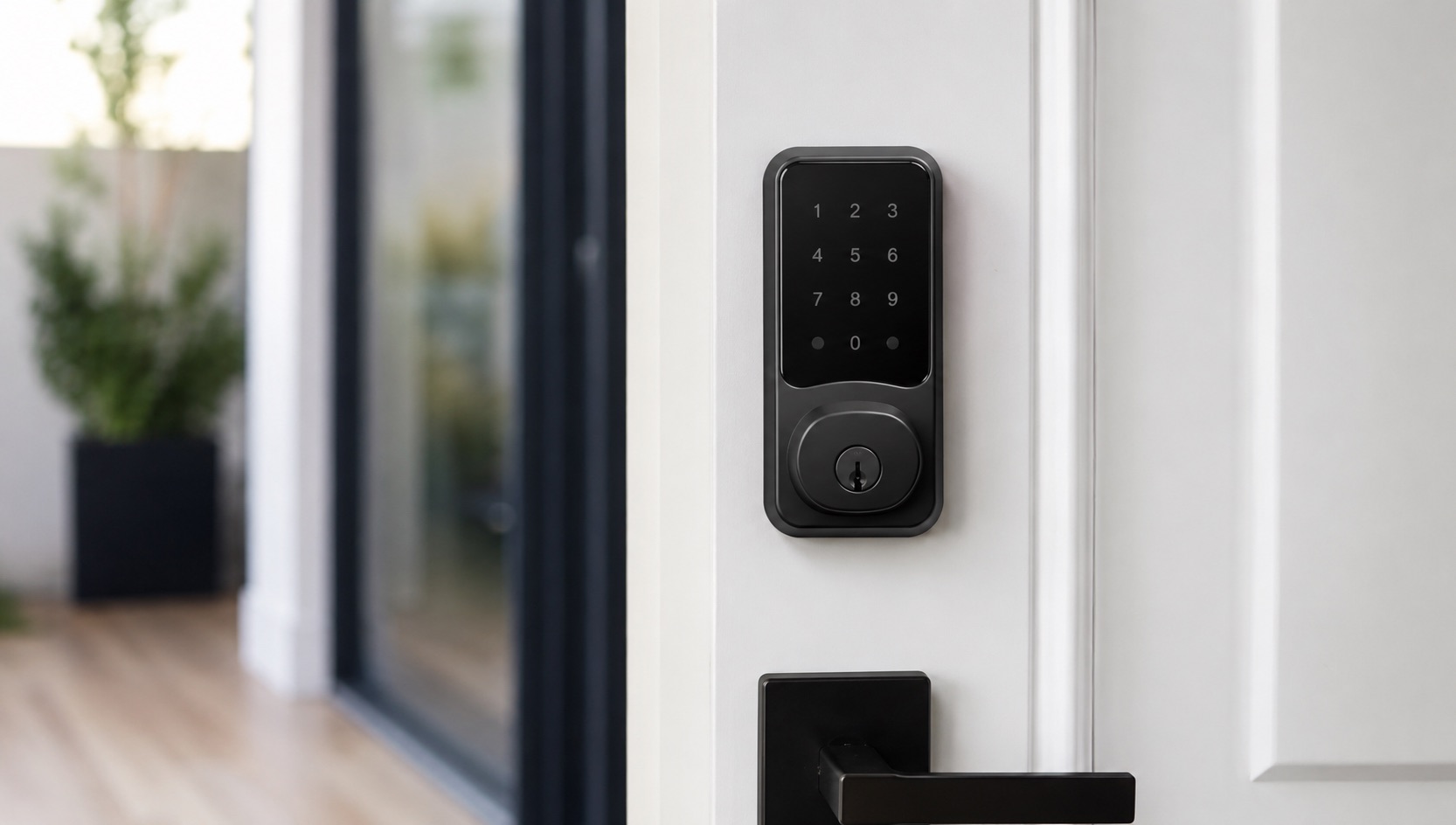
Illustrative image, not evidence of a product test.
How to Set Up Geofencing for Your Smart Home (2026)
Geofencing is how your smart home knows you left without you pressing anything. Your phone crosses an invisible boundary around your house, and everything responds: doors lock, thermostat dials back, security arms. It’s hands-free automation at its best.
Here’s how to set it up on every major platform, plus the multi-person logic that makes it actually work for families.
What Geofencing Does (and Why You Want It)
Your phone has GPS. Geofencing draws a virtual circle around your home (typically 150-500 meters radius). When your phone leaves that circle, your smart home triggers “away” automations. When you re-enter, “home” automations fire.
The payoff is real. In my house, geofencing saves roughly $35/month on heating and cooling alone by setting the thermostat back whenever we leave. It also means I’ve never once forgotten to lock the front door in 2 years.
What to Automate When You Leave
Here’s my departure checklist (all triggered automatically):
- Lock the front door and back door
- Arm the security system (or switch to “Away” mode)
- Set thermostat back to 62°F in winter or 80°F in summer
- Turn off all interior lights
- Turn off any smart plugs running fans or space heaters
- Start the robot vacuum (why not, you’re gone anyway)
What to Automate When You Arrive
The arrival checklist:
- Unlock the front door (only for the person arriving, not broadcast)
- Disarm security system
- Set thermostat to 72°F
- Turn on hallway and living room lights (if after sunset)
- Pause the robot vacuum so it’s not under your feet
For a full list of automations worth setting up, check our best smart home automations guide.
Platform 1: Ecobee Thermostat (Built-In Geofencing)
Ecobee has geofencing baked into the thermostat itself. No hub or extra app needed.
Setup:
- Open the Ecobee app
- Go to Settings > Home/Away
- Enable “Smart Home & Away” and “Geofencing”
- Grant location permissions to the Ecobee app (always allow)
- Set your comfort settings for Home and Away
- Invite household members to install the app for multi-person support
How it works: Ecobee checks all linked phones. When the last person leaves, it switches to Away comfort settings. When the first person arrives, it switches back to Home.
Radius: About 150 meters, not adjustable. Works fine for most homes.
Reliability: 8/10. Occasionally 5-10 minute delay because the app polls location rather than using real-time GPS. You might arrive home to a still-warming house in winter.
For thermostat comparisons, see our best smart thermostat guide.
Platform 2: Google Nest (Home/Away Routines)
Nest thermostats and the Google Home app both support presence-based automations.
Setup:
- Open Google Home app
- Go to Settings > Presence Sensing
- Choose GPS-based (phone location) or sensor-based (Nest detects motion)
- For geofencing specifically, enable “Use phone location for Home/Away”
- Create automations: Automations > ”+” > When everyone leaves / When first person arrives
How it works: Google uses phone location from all household members. “Everyone left” triggers Away automations. “Someone arrived” triggers Home automations.
Radius: Not directly adjustable. Google uses a proprietary algorithm combining GPS, WiFi, and activity recognition.
Reliability: 7/10. The combination of methods sometimes conflicts. I’ve seen it think I’m away while sitting in my living room because my phone connected to a neighbor’s WiFi briefly.
Platform 3: SmartThings (Presence Sensing)
SmartThings has solid geofencing built into its app.
Setup:
- Open SmartThings app
- Go to your Location settings
- Tap “Geolocation” and set the radius (adjustable from 150m to 500m)
- Each household member needs SmartThings installed with location permissions
- Create automations based on “Member arrives” or “Member leaves” or “Everyone leaves”
How it works: SmartThings tracks each member’s phone independently. You can trigger on individual arrival/departure or wait for the “everyone left” condition.
Radius: Adjustable (150-500 meters). Bigger radius means earlier triggering but more false positives near the boundary.
Reliability: 8/10. Pretty consistent. The adjustable radius helps avoid edge cases. Occasional hiccups if a phone’s location services get throttled by the OS.
Platform 4: Home Assistant (Companion App)
Home Assistant’s companion app turns your phone into a presence sensor. This is the most powerful option but needs a bit more setup.
Setup:
- Install the Home Assistant Companion app on every household phone
- In HA, each phone creates a
device_trackerentity automatically - Define your home zone in Settings > Areas & Zones (location + radius)
- Create automations using the
zonetrigger:
automation:
  - alias: "Everyone left - away mode"
    trigger:
      - platform: state
        entity_id: group.family
        to: "not_home"
    action:
      - service: lock.lock
        entity_id: lock.front_door
      - service: climate.set_temperature
        data:
          entity_id: climate.thermostat
          temperature: 62
      - service: alarm_control_panel.alarm_arm_away
        entity_id: alarm_control_panel.home
Radius: Fully adjustable (any distance you want). I use 200 meters.
Reliability: 9/10. The companion app uses native iOS/Android geofencing APIs, which are highly optimized. Battery impact is minimal. It also supports multiple zones (work zone, gym zone, etc.) for more complex automations.
For more on Home Assistant, see our best smart home hub guide.
Platform 5: Life360 Integration
If your household already uses Life360 for family location tracking, you can pipe that data into SmartThings or Home Assistant.
For SmartThings: Life360 integrates natively. Each family member’s location shows as a presence sensor in SmartThings.
For Home Assistant: Use the Life360 custom integration (HACS). Each person gets a device_tracker entity. Reliable, but adds a cloud dependency.
Why Life360 over native apps: Some families already use it for kid tracking. No need to install another app. The presence data is the same quality either way.
Multi-Person Handling: The Critical Detail
Here’s where geofencing gets complicated. In a two-person household, you need this logic:
- Last person leaves = Away mode (lock up, set back thermostat, arm security)
- First person arrives = Home mode (unlock, comfort temp, disarm)
If you trigger Away mode when any person leaves, you’ll lock your partner inside, arm security while they’re home, and kill the thermostat while someone’s still in the house.
Every platform listed above supports multi-person logic natively. The key is making sure every household member has the relevant app installed with location permissions set to “Always Allow.”
Common mistake: Setting location permissions to “While Using App” instead of “Always.” Geofencing requires background location access. Without it, the system only knows your location when the app is actively open, which defeats the purpose entirely.
iOS battery concern: “Always Allow” location sounds scary for battery, but geofencing uses very little power. It relies on cell tower transitions and WiFi SSID changes, not constant GPS polling. I see less than 2% battery drain per day from the Home Assistant companion app.
Setting the Right Radius
Too small (under 100 meters): Your phone might not register leaving until you’re already a block away. The precision of GPS in residential areas is about 15-50 meters, so a tiny fence causes frequent false triggers.
Too large (over 500 meters): Automations trigger when you’re still walking the dog around the block. Your house locks up while you’re 3 minutes away.
My recommendation: 200 meters. Big enough to avoid GPS jitter, small enough that you’ve genuinely left the property.
Platform Comparison Table
| Platform | Geofencing Method | Multi-Person | Radius Setting | Reliability |
|---|---|---|---|---|
| Ecobee | Built-in app GPS | Yes (all household phones) | ~150m, not adjustable | 8/10 |
| Google Nest/Home | Phone + sensor combo | Yes (Google Home members) | Not adjustable (algorithm) | 7/10 |
| SmartThings | App GPS | Yes (all members) | 150-500m adjustable | 8/10 |
| Home Assistant | Companion app GPS | Yes (all phones with app) | Fully custom (any radius) | 9/10 |
| Life360 | Life360 app GPS | Yes (all circle members) | 150m-500m per place | 8/10 |
Troubleshooting Common Issues
“It triggers when I’m still home”: Your GPS drifted outside the fence. Increase the radius by 50 meters. This is especially common in apartments or dense urban areas where GPS bounces between buildings.
“It doesn’t trigger when I leave”: Check that location permissions are set to “Always Allow” (not “While Using”). On Android, also disable battery optimization for the app.
“It works for me but not my partner”: Their phone likely has aggressive battery optimization killing the app in the background. Samsung phones are notorious for this. Go to Settings > Battery > App management and set the relevant app to “Unrestricted.”
“There’s a 10-minute delay”: Some apps poll location every few minutes rather than using real-time geofence events. Home Assistant’s companion app is real-time. Ecobee and Life360 sometimes poll.
For the locks that work with geofencing automations, see our best smart locks guide.
Security Considerations
Automatically unlocking your door when you arrive sounds convenient, but think it through:
- Don’t unlock the door when the geofence triggers. Unlock it when you’re actually at the door (combine geofencing with a door sensor or Bluetooth proximity).
- Always require re-locking after a timeout. If the door unlocks and nobody opens it within 30 seconds, lock it again.
- Use auto-lock on departure (safe), but be cautious with auto-unlock on arrival.
A smarter approach: use geofencing to disarm security and set the thermostat, but handle door unlocking through a keypad code or fingerprint sensor on the lock itself.
Our guide on how to start a smart home from scratch covers security best practices in more detail.
FAQ
Does geofencing drain my phone battery? Barely. Modern geofencing uses cell tower and WiFi transitions, not constant GPS. Expect 1-3% extra battery drain per day. If you see more, the app is likely using continuous location tracking instead of geofencing APIs, which means something’s misconfigured.
Can I use geofencing without giving an app my exact location? Not really. Geofencing requires the app to know when you cross a boundary. You can limit data sharing (Home Assistant processes everything locally and never sends location to a cloud), but the app on your phone must have access.
What if I have guests and don’t want the house to enter “Away” mode? Most platforms only track registered household members. Guests don’t affect the logic. If you want guest-awareness, use a motion sensor as a secondary “occupied” signal that overrides geofencing. Home Assistant handles this well.
Does this work with multiple homes (vacation home, office)? Yes, but setup varies. Home Assistant lets you define unlimited zones. SmartThings supports multiple locations. You can have different automations trigger based on which zone you enter or leave.
What if I don’t want to install an app on every phone? Some alternatives exist. SmartThings sells a dedicated presence fob ($20) that doesn’t require a phone. Tile trackers can work through IFTTT. But phone-based geofencing is the most reliable and cheapest (free) option available today.